
Microsoft Dynamics 365 Business Central and Benji Pays
Benji Pays is AR automation for Microsoft Dynamics 365 Business Central: it imports your customers and open invoices, collects payment, and records each payment back in Business Central as cash receipt journal lines.
Start your free trial View a demo
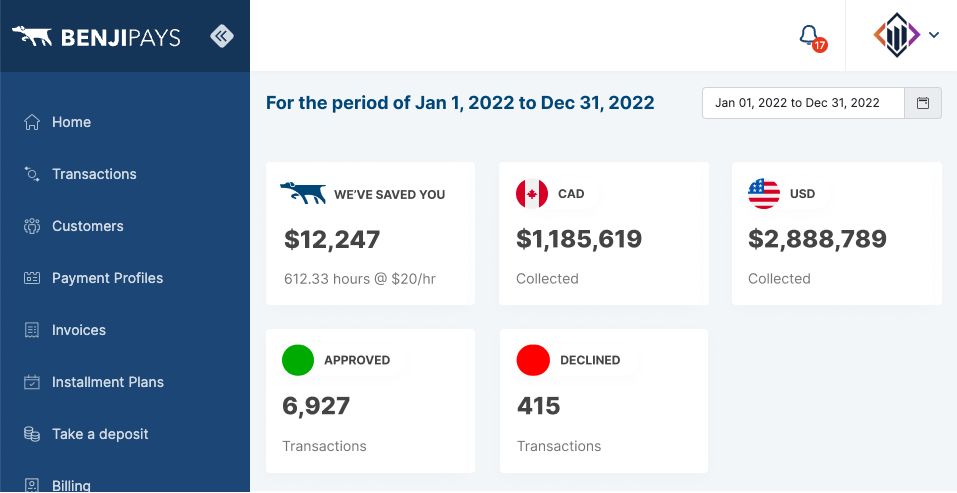
Business Central at a glance
- Benji Pays supports Microsoft Dynamics 365 Business Central on the Elite plan and up, including Enterprise.
- Each Benji Pays account connects to one Business Central company in one environment.
- Benji Pays imports your Business Central customers, open posted sales invoices and open credit memos.
- Changes you make in Business Central appear in Benji Pays within a few minutes.
- Benji Pays records payments in Business Central as cash receipt journal lines.
- Customers pay by credit or debit card, U.S. ACH or Canadian EFT with Benji Payments, or by card through an existing gateway.
- Benji Pays does not replace Business Central. Business Central creates your invoices and stays the source of truth.
- Payments, deposits and refunds are recorded in Business Central.
- Start with a free trial that includes Business Central.
How Benji Pays works with Microsoft Dynamics 365 Business Central
Microsoft Dynamics 365 Business Central keeps creating your invoices. Benji Pays follows up, collects, and posts the payment back.
-
Connect your books
Link Microsoft Dynamics 365 Business Central. Benji Pays imports your customers and open invoices. Keep invoicing the way you do now.
-
Benji Pays follows up
Invoices go out with payment links, reminders run on your schedule, and customers can pay in the portal.
-
Payments post back
Each payment is matched to its invoice and recorded in Business Central as cash receipt journal lines. Deposits and refunds sync too.
Customer portal, Autopay and payment reminders
Benji Pays handles the follow-up and the collection on your Microsoft Dynamics 365 Business Central invoices.
-
Invoice Rover reminders
Invoice Rover sends new invoice alerts, reminders before the due date and follow-ups on overdue invoices, using email templates you customize for each stage.
-
Payment links
Send invoices with integrated Pay Now links so customers can pay online.
-
Customer portal
Give customers a branded, self-service experience where they can pay multiple invoices, review their history, and manage saved payment methods. You choose who gets access.
-
Autopay (Auto Processing)
Set up recurring payments for regular customers. On the due date, Benji Pays charges the saved payment method and applies the payment to the invoice.
Get paid by card or bank payment
Benji Payments is our integrated payment processing. You can also keep the merchant account you have.
-
Card and bank payments
Customers pay by credit or debit card, U.S. ACH or Canadian EFT with Benji Payments, or by card through an existing gateway.
-
ACH and EFT pricing
ACH and EFT are priced per transaction, not as a percentage of the invoice, on every accounting system Benji Pays supports. Card fees are a percentage set by your processor.
-
Installment plans
Split one invoice into scheduled payments, charged automatically to a saved card or bank account (ACH/EFT). You set the schedule.
-
Posting and sync
Each payment is recorded in Microsoft Dynamics 365 Business Central as cash receipt journal lines. Deposits and refunds sync, so your books stay current.
Built for service businesses
Pick your industry to see the workflow, integrations, and questions that matter most to businesses like yours.
-
Managed service providers
Collect PSA invoices from ConnectWise PSA, HaloPSA, and Autotask, and post payments to your books.
Explore -
Construction and trades
Get paid by bank payment or card on job invoices, deposits, and progress payments.
Explore -
Franchises
Payment links, Autopay, and reminders, with every payment posted to your books.
Explore -
Professional services and accounting
Collect client invoices with payment links, Autopay, and reminders.
Explore -
Hospitality supply
Collect invoices you send to restaurants, hotels, and bars, then post each payment.
Explore -
Rentals
Collect rental invoices for equipment, bins, toilets, and fencing.
Explore -
Other service businesses
Service businesses that bill other businesses on QuickBooks, Xero, or Microsoft Dynamics 365 Business Central.
Explore
Recurring, usage-based, project and installment invoices
Benji Pays collects on the invoices Microsoft Dynamics 365 Business Central already creates. Any industry can use any of these.
-
Recurring and contract invoices
Autopay charges the saved card or bank account when each invoice comes due.
-
Usage-based invoices
Totals change every month. Each new invoice goes out with a payment link and reminders.
-
Job and project invoices
Deposits, progress, and final invoices each get their own payment link.
-
Installment plans
Split one invoice into scheduled payments, charged automatically to a saved card or bank account (ACH/EFT). You set the schedule.
See installment plans
Payment-method and workflow availability depends on the configured gateway and merchant account.
Pricing for Business Central
Microsoft Dynamics 365 Business Central is on the Elite plan and up, including Enterprise.
Elite includes Enterprise level support, a dedicated account manager and an annual AR process review.
Start a free trial that includes Business Central.
Our software fees never take a percentage of your revenue. Processor fees still apply.
Set up Business Central with Benji Pays
Connect Business Central once. Assign a cash receipt journal once your payment gateway is connected.
-
Prepare Business Central
Ask your Business Central administrator to install the API Reports – Finance extension and enable Allow HttpClient Requests for it. Your Microsoft 365 administrator may need to grant admin consent.
-
Start the connection
In Benji Pays, go to Settings > Company Settings, select Connect to Business Central and select Continue.
-
Sign in with Microsoft
Sign in with a Microsoft work account that has a Business Central Essentials or Premium license, and accept the requested permissions.
-
Choose your company
Choose the environment, such as Production or Sandbox, then the Business Central company, and select Continue. Benji Pays imports your customers, open invoices and credit memos.
-
Assign a cash receipt journal
Once your payment gateway is connected, choose a cash receipt journal for it in Settings > Business Central Settings.
Each Benji Pays account connects to one Business Central company in one environment, and you cannot switch it after you connect.
Business Central questions
How does Benji Pays automate accounts receivable for Microsoft Dynamics 365 Business Central?
Benji Pays collects payment on your Microsoft Dynamics 365 Business Central invoices and records those payments back in Business Central for you. It imports your customers and open posted sales invoices, collects payment, and records each payment as cash receipt journal lines.
Which Business Central license do I need?
The Microsoft work account that connects needs a Business Central license that allows posting journals, Essentials or Premium. A Team Member license cannot post cash receipt journals.
Does Benji Pays install an extension in my Business Central company?
No. Benji Pays uses the standard Business Central API and the Finance reports API, and does not install its own extension in your company.
How quickly do Business Central changes reach Benji Pays?
Benji Pays registers webhooks, so changes you make in Business Central appear in Benji Pays within a few minutes.
Can I connect more than one Business Central company?
Each Benji Pays account connects to one Business Central company in one environment. To process payments for several companies, create a separate Benji Pays account for each company.
How do my customers pay Business Central invoices?
Customers pay by credit or debit card, U.S. ACH or Canadian EFT with Benji Payments, or by card through an existing gateway, and ACH and EFT pricing is the same as for other accounting systems. They can pay from a Pay Now link or the customer portal, or you can set up Autopay on a saved payment method.
Do I have to switch payment processors?
No. You can keep your existing merchant account or use Benji Payments.
Which Benji Pays plan includes Business Central, and what does it cost?
Microsoft Dynamics 365 Business Central is on the Elite plan and up, including Enterprise. Our software fees never take a percentage of your revenue. Processor fees still apply. See plans and prices on the Benji Pays pricing page.
Do deposits and refunds sync to Business Central?
Yes. Benji Pays records payments, deposits and refunds in Business Central.
Is there a free trial for Business Central?
Yes. The free trial includes Business Central.
Comparing tools? See how Benji Pays and nine other tools handle Business Central on the accounts receivable automation comparison for Business Central.
1,840,580+
Transactions
How Benji Pays Works.
Connect.
Benji Pays connects your accounting system with your payment processor giving you a choice of which merchant account and processor to use.
Sync.
Our two-way sync keeps your accounting system up to date.
Your payments, deposits and refunds are synchronized automatically in your accounting system.
Get Paid.
Send out invoice payment links or automate your invoice payment processing. Put manual data entry behind you and free up your team so they can focus on what’s important.
How Benji Pays Helps
Integrate with any merchant account.
Connect Benji Pays to any merchant account. You don’t have to choose between great rates and integrated payments. Connect your merchant account with Benji Pays and keep your existing rates.
Fetch payments faster.
Our integrations and automations speed up your entire payments process, taking the pain out of accounts receivable and improving your cashflow.
Get time back.
Benji Pays eliminates the manual grind of payments and invoicing so you have more time to invest in your more important tasks, your business or even just yourself.
Stress less.
Our automated two-way sync reduces errors, improves security, compliance and peace of mind knowing all customer credit details are safe and secure.
What Benji Pays does.
Benji Pays automates the process of getting your invoices paid.
- On the due date of the invoice, Benji Pays charges your customer’s card for the amount due
- The payment is applied to the invoice in your accounting system
- Optionally, a receipt and copy of the paid invoice are sent to your customer
Once processed, funds flow to your bank account just as they do when you process payments without Benji Pays.
In addition to Auto Processing:
- Use Benji Pays’ Integrated Virtual Terminal to process invoice payments or deposits at any time.
- Send Integrated Pay Now Links to your customers so they can pay their invoices online.

Benji Pays helps you
Get paid faster
- Email invoices with integrated “Pay Now” links
- Automate invoice payment processing
- Installment plans split your invoices into multiple payments
- Use your existing payment processor and gateway
- Improve cash flow and reduce your Days Sales Outstanding
Save time and money
- Transactions automatically sync into your accounting software
- Eliminates hundreds of hours in manual data entry
- Eliminate CSV files and manual batch processes
- Automation allows your team to focus on what’s important
- Reduce card-not-present transaction fees
Improve Security and PCI Compliance
- Improve your organization’s PCI Compliance
- Save credit card details securely in your card vault
- Securely collect customer card details
- Keep sensitive credit card details secure
Have choices
- Your choice of merchant account provider
- Your choice of accounting software
- Accept payments from multiple services
- Fully automated and manual integrated payment processing
- Benji Pays supports many workflows with many flexible ways for your clients to pay you
Benji Pays is an amazing program and has helped our business not only save money, but it integrates so well with QBO that it can save me 3 to 4 manual steps with each transaction! Thank you so much!!
Okanagan Crushpad
Diana H.







Last updated November 2026